


in Demo
Tileable textures with High Pass
TIP – Tileable textures with High Pass (step5)
- HD VIDEO / Narrated / 2′
- PSD FILE to download
- Not uniform Textures
- How to use High pass filter
- Take advantage of blending modes
Watch the video to see how to use High Pass:
High Pass / Step 5
Too many times we encounter untileable textures. We usually have 2 possibilities: the texture is untileable for pattern OR untileable for luminosity. The ‘Clone Stamp tool’ in photoshop can easily fix the pattern problem.
But how to fix textures when the problem is due to a variation of luminosity, like this:

 CONCEPTS:
- Duplicate the layer
- New layer: Apply Filter > Other > High Pass
- Find the right radius value!
- Use the “Luminosity” blending mode
Here a simple workflow to understand how to arrange the levels on Photoshop:
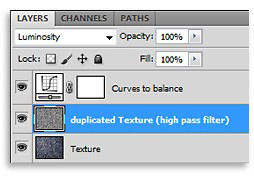
(*) If needed, add a Curves to balance loss of contrast
 DOWNLOAD:
Download this pack to verify how this technique is applied
I’m sure this trick will help you in many situations:
- Download Tileable Pack
- SUBSCRIBE our V-Ray Course, with 5SRW
(*) Our V-Ray Course is also available in different languages